

Create tasks using email Always the same easy to remember email address for every user
You only need to remember one email address, independent of which list the task belongs to. Just email to your SaveYourDay account by sending an email to addtask@saveyourday.com from the email account you use to login onto SaveYourDay.
The task contents will be equal to the email subject line. The contents of the email becomes a task comment.
Add an in-line picture
There is now a possibility to add in an in-line picture in the email. Make a screen dump and copy it to the email contents. Use it for example to capture a workflow or a process map on a whiteboard to create the next task in order to implement new business processes.
Shortcuts in the email subject
In the email subject, you can add in shortcuts (Swedish page) such as list, context, tags, start and completion dates and also if the task is important. Then SaveYourDay will put the task with the given attributes in the correct list and your planning is immediately done.
Exempel
Create tasks using email (Swedish)
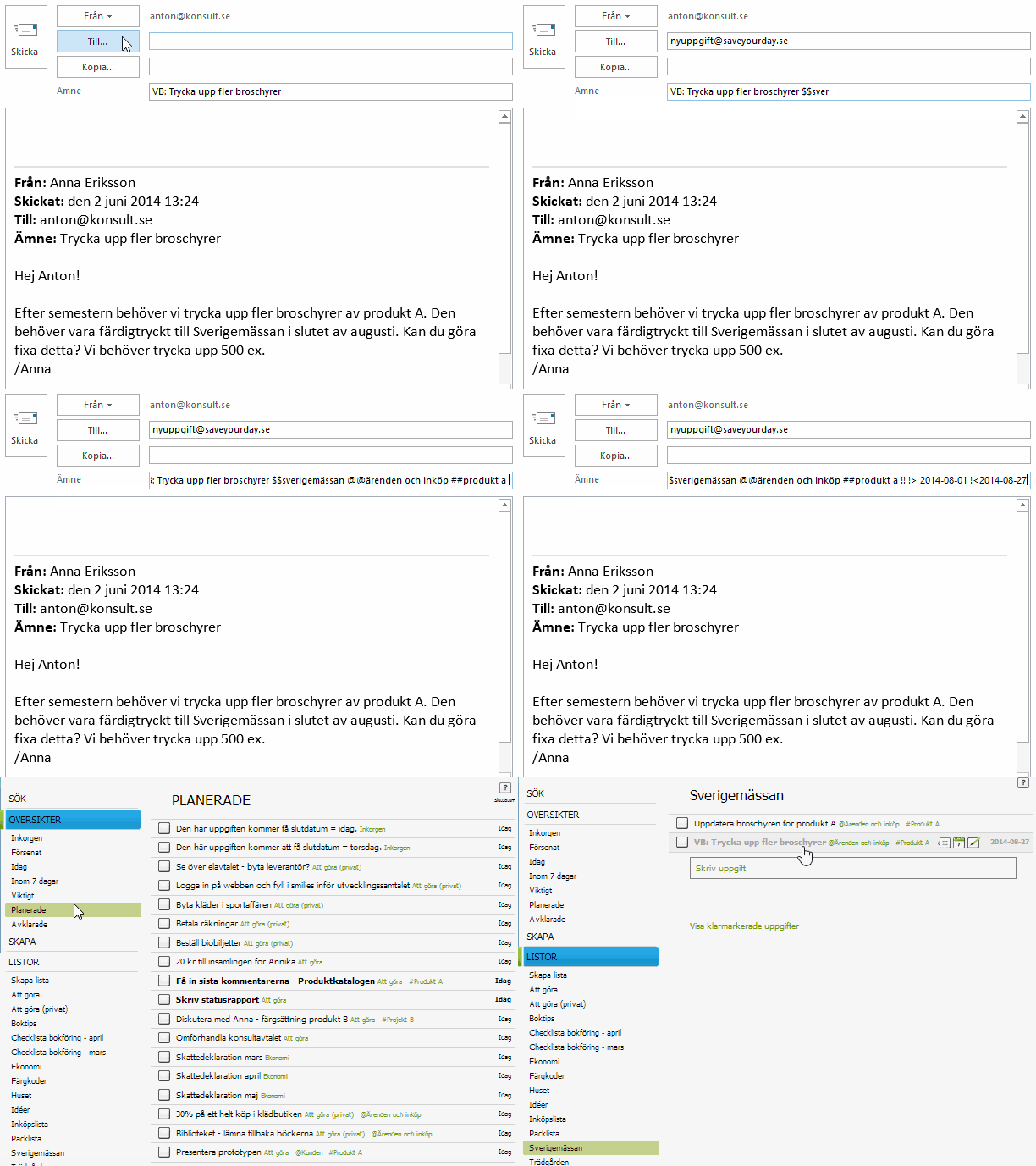
Outlook shortcuts
Outlook and other email tools provide the possibility to use a shortcut command to email tasks to SaveYourDay. With correct setup of the shortcut it is easy to send any desired email to a given list while archiving the email in the correct archive folder.